quarto --versionSetup & Installation
Before diving into R, let’s set up your development environment. By the end of this chapter, you’ll have R, RStudio, and Quarto installed and ready to go.
If you run into any difficulties with installation, see Posit Cloud (Online Alternative) for a browser-based alternative that requires no installation.
Install R
R is the programming language we’ll use throughout this book.
Please go to the CRAN (Comprehensive R Archive Network) website to download R:
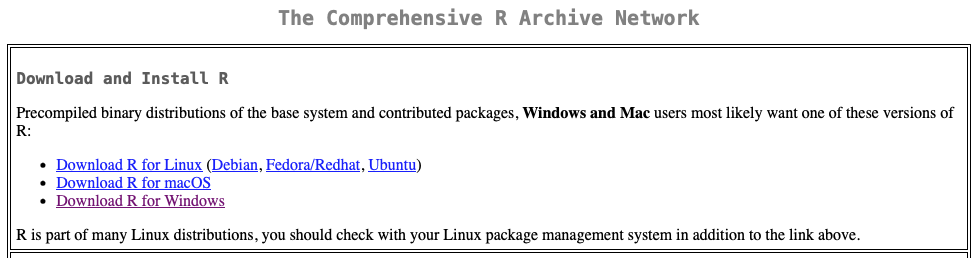
- Click “Download R for Windows”
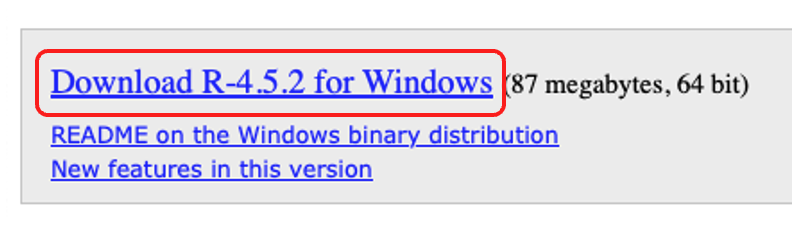
- Click “base”
- Click the download link for the latest version (e.g., “Download R-4.x.x for Windows”)
- Run the installer with default settings
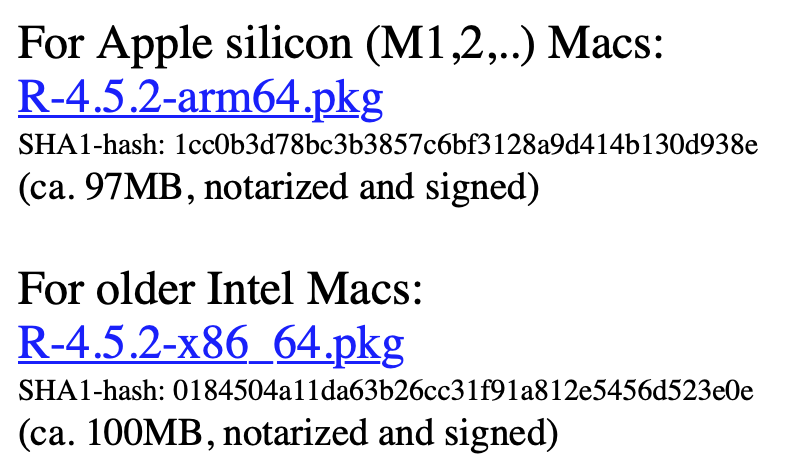
- Click “Download R for macOS”
- Choose the correct installer for your Mac:
- Apple Silicon (M1/M2/M3/M4): download the
arm64version - Intel Mac: download the
x86_64version
- Apple Silicon (M1/M2/M3/M4): download the
- Open the
.pkgfile and follow the installer
- Click “Download R for Linux”
- Follow the instructions for your distribution (Ubuntu, Fedora, Debian, etc.)
NoteWhich version of R?
As of this writing, R 4.x is the current major version.
Install RStudio Desktop
RStudio is an integrated development environment (IDE) for R — it’s where you’ll write and run your R code. Take car analogy as en example: R is the engine, and RStudio is the dashboard.
Download RStudio Desktop (free) from:
https://posit.co/download/rstudio-desktop/
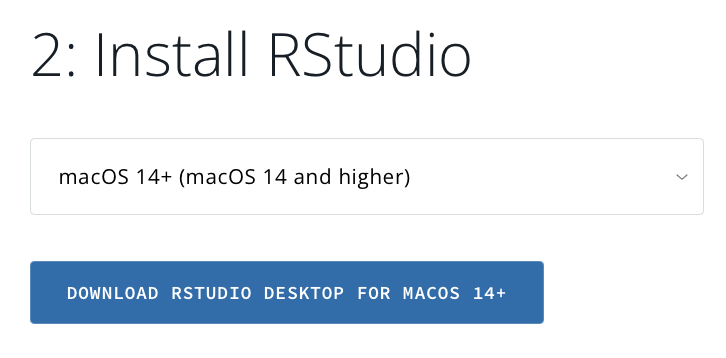
- Go to the link above
- Download the RStudio Desktop installer for your operating system
- Run the installer with default settings
- Open RStudio — it should automatically detect your R installation
WarningInstall R first, then RStudio
RStudio needs R to work. Always install R (the previous step) before installing RStudio.
Install Quarto CLI (Optional)
Quarto is a publishing system that lets you create reports, documents, presentations, and websites from R code and text. We’ll use Quarto in ?sec-quarto to create reproducible reports.
Download Quarto from:
https://quarto.org/docs/get-started/
- Go to the link above
- Download the Quarto CLI installer for your operating system
- Run the installer with default settings
NoteQuarto may already be bundled with RStudio
Recent versions of RStudio (2022.07+) include Quarto. You may already have it. To check, open a terminal and run:
We still recommend installing the latest Quarto CLI separately to ensure you have the newest features.
Install Required R Packages
R packages are add-ons that give R new abilities — think of them as apps for your phone. We’ll use several packages throughout this book.
Open RStudio and copy the following code in the Console pane (bottom-left), then hit “Enter”:
install.packages("tidyverse")Example Screenshot:

tidyverse R package
TipThis may take a few minutes
Package installation downloads files from the internet and compiles code. Be patient — this is a one-time process. You may see lots of messages scrolling by; that’s normal.
WarningErrors during installation?
If you see an error about a package not being available, check your internet connection and try again. If a specific package fails, you can skip it for now and install it later when the relevant chapter requires it.
Verify Your Installation
Let’s run a quick test to confirm everything is working. Create a new R script in RStudio (File > New File > R Script) and run the following code:
# Test 1: R is working
print("Hello, R!")

# Test 2: Tidyverse loads successfully
library(tidyverse)
Expected Output:
> # Test 1: R is working
> print("Hello, R!")
[1] "Hello, R!"

> # Test 2: Tidyverse loads successfully
> library(tidyverse)
If you see the following output in the Console (see The Four Panes) with no erors, your setup is complete!
TipHow to run code in RStudio
Place your cursor on a line of code and press Cmd + Enter (macOS) or Ctrl + Enter (Windows/Linux) to run it. You can also select multiple lines and run them all at once.
Posit Cloud (Online Alternative)
If you encounter installation difficulties or want to get started immediately without installing anything, you can use Posit Cloud — a browser-based version of RStudio.
- Go to https://posit.cloud/
- Create a free account
- Click “New Project” > “New RStudio Project”
- You’ll get a full RStudio environment in your browser
Note
Posit Cloud is great for getting started quickly, but the free tier has limited computing hours per month. We recommend installing R and RStudio on your computer for long-term use.
Summary
You now have a complete R development environment:
In the next chapter, we’ll take a guided tour of RStudio so you know your way around before we start coding.